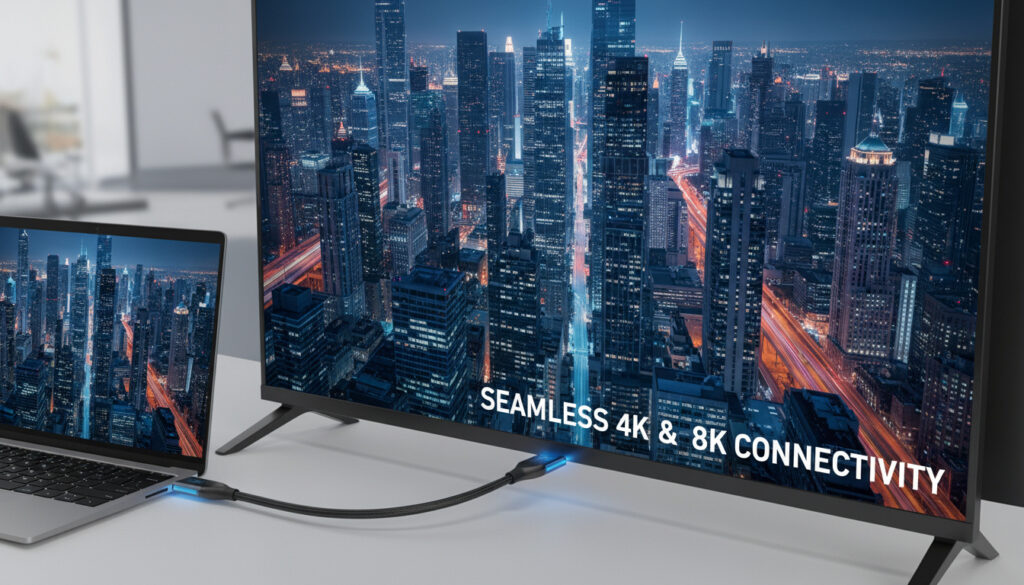
HDMI to USB-C – Best Adapters for 4K and 8K
Connecting modern laptops and devices to external displays requires navigating the transition between USB-C and HDMI standards. Active adapters bridge this gap, converting video signals from USB-C sources—typically laptops, tablets, and mobile workstations—to HDMI outputs for monitors, televisions, and projectors. The technology relies on DisplayPort Alt Mode functionality embedded within the USB-C port.
Success depends entirely on hardware compatibility. Not every USB-C port supports video output, and not every adapter handles high-refresh 4K or 8K resolutions. Understanding these constraints prevents costly purchasing mistakes and connection failures.
Can I Connect HDMI to USB-C?
Active adapters convert DisplayPort signals (carried over USB-C) to HDMI output using internal chipsets. Passive cables work only when the source natively outputs HDMI over USB-C, which is rare.
The USB-C port must support DisplayPort Alternate Mode (DP Alt Mode) with HBR3 bandwidth up to 8.1Gbps per lane. Check laptop specifications for compatibility.
Standard adapters manage 4K at 60Hz. Premium HDMI 2.1 adapters reach 8K at 60Hz or 4K at 120Hz, but require specific cable certification and source bandwidth.
Reliable adapters range from $15 for basic 4K@60Hz models to $50 for HDR-enabled, high-refresh 8K units. Price correlates with bandwidth and build quality.
- Source Verification: USB-C ports must explicitly support video output via DP Alt Mode; data-only ports fail regardless of adapter quality.
- Cable Certification: Certified HDMI 2.1 cables handle 48Gbps for 8K/4K120, while HDMI 2.0b cables max out at 18Gbps for 4K@60Hz.
- Directional Limitations: Most adapters function unidirectionally from USB-C source to HDMI display only; reverse conversion requires capture hardware.
- Brand Reliability: UPTab, Satechi, StarTech, Anker, and Cable Matters consistently meet HDMI.org and USB-IF compliance standards.
- Power Constraints: Hub-based adapters may limit power delivery (PD) when driving high-bandwidth video; dedicated video adapters prioritize signal integrity.
- OS Variations: 8K resolution support often remains Windows-exclusive on certain adapter chipsets, with macOS limited to 4K or lower on identical hardware.
| Specification | Capabilities | Requirements |
|---|---|---|
| Maximum Resolution | 4K@60Hz standard; 8K@60Hz or 4K@120Hz premium | HDMI 2.1 + DP 1.4 Alt Mode |
| Cable Distance | Up to 2 meters passive; longer with active chipsets | Certified 48Gbps HDMI 2.1 copper |
| Power Delivery | 65W–140W passthrough (when supported) | USB-C PD 3.0 or higher |
| Signal Direction | Unidirectional: USB-C input to HDMI output | Source device with DP Alt Mode output |
| HDR Support | HDR10, Dolby Vision, DSC 1.2a compression | HDMI 2.1 FRL mode (40–48Gbps) |
| Host Compatibility | Thunderbolt 3/4/5, USB4, standard DP Alt Mode | HBR3 bandwidth (8.1Gbps/lane) |
| HDCP Compliance | Version 2.2/2.3 for protected content | Chain-compatible displays and cables |
| Audio Channels | 8-channel PCM, Dolby Atmos pass-through | HDMI 2.0b or higher standard |
What Are the Hardware Requirements?
Host devices require USB-C ports supporting DisplayPort Alternate Mode. Dell XPS, Lenovo ThinkPad, MacBook Pro M1+, Surface Pro, and iPad Pro models typically include this functionality, but verification through manufacturer specifications remains essential. The UPTab adapter documentation confirms Thunderbolt 3/4/5 and USB4 compatibility for high-bandwidth video.
Can USB-C Carry HDMI Signal?
USB-C does not natively carry HDMI signals. Instead, it transports DisplayPort video data which active adapters convert to HDMI TMDS or FRL (Fixed Rate Link) formats. This conversion happens within the adapter chipset, presenting an HDMI-compatible signal to the display while drawing video bandwidth from the USB-C DP Alt Mode lanes.
What Is the Best HDMI to USB-C Adapter?
Adapter selection depends on resolution targets and refresh rates. YouTube testing demonstrates significant performance variance between budget aluminum casings and active HDR-enabled units. Comparative reviews highlight reliability differences under sustained 4K@120Hz loads.
Top Performers for 8K Resolution
The UPTab USB-C to HDMI 2.1 HDR Active Adapter supports 7680×4320 at 60Hz using DSC 1.2a compression and HDMI 2.1 FRL up to 48Gbps. It handles HDR10 and Dolby Vision but requires a separate certified HDMI 2.1 cable. StarTech’s USB-C to HDMI 2.1 offers similar 8K@60Hz capability optimized for video editing workflows, while Satechi’s 8K adapter limits full 8K resolution to Windows hosts.
Best Options for High-Refresh Gaming
For 4K@120Hz gaming, the UPTab and StarTech adapters maintain signal integrity under 40–48Gbps loads. Testing shows the Cable Matters USB-C to HDMI 2.1 reaching 4K@240Hz on compatible displays, though 8K@60Hz remains the practical ceiling for most GPU configurations. Acer’s compact aluminum adapter delivers stable 1080p@120Hz for esports titles, while Anker units provide broad device compatibility at standard 4K@60Hz.
Budget-Friendly Selections
Highwings adapters offer 4K@60Hz throughput via Thunderbolt 3/4 and HDMI 2.0 pathways, suitable for streaming and productivity. StarTech’s USB-C to HDMI 2.0b handles 4K@60Hz with HDR10 and HDCP 2.2, tested reliably to 23 feet with passive cabling. These lower-bandwidth solutions suffice for standard productivity monitors.
Certified HDMI 2.1 cables (48Gbps) are mandatory for 4K@120Hz or 8K@60Hz. Standard HDMI 2.0b cables (18Gbps) cap at 4K@60Hz. Testing shorter cable lengths first isolates electromagnetic interference issues common with unshielded copper runs.
How Does HDMI to USB-C Work?
DisplayPort Alt Mode Mechanism
USB-C connectors carry multiple high-speed lanes configurable for alternate protocols. VESA’s DisplayPort over USB-C standard repurposes these lanes to transport video data at HBR3 speeds (8.1Gbps per lane). With four lanes active, total bandwidth reaches 32.4Gbps, sufficient for uncompressed 4K@60Hz or compressed 8K via DSC.
HDMI 2.1 and Bandwidth Pathways
Adapters translate DisplayPort packet data into HDMI TMDS (Transition Minimized Differential Signaling) for 2.0b compatibility or FRL (Fixed Rate Link) for 2.1 standards. FRL operates at 6Gbps, 8Gbps, 10Gbps, or 12Gbps per lane, aggregating up to 48Gbps across four lanes. This bandwidth enables 8K@60Hz with 10-bit HDR or 4K@120Hz for high-refresh gaming monitors.
Directionality and Conversion Limits
Standard active adapters function unidirectionally. The UPTab unit explicitly operates USB-C input to HDMI output only. Bidirectional functionality requires specialized hardware rarely found in consumer adapters. Users seeking HDMI source to USB-C display conversion need USB-C video input ports—uncommon outside specialized capture devices or portable monitors with dedicated controller boards.
Display Stream Compression (DSC) 1.2a visually lossless encoding enables 8K@60Hz over USB-C’s 32.4Gbps DP 1.4 bandwidth. Without DSC, 8K requires uncompressed bandwidth exceeding standard DP Alt Mode limits, restricting output to 4K or lower resolutions.
Why Is My HDMI to USB-C Not Working?
Verifying DP Alt Mode Support
Connection failures typically stem from USB-C ports lacking video output capability. Documentation emphasizes checking system specifications for DP Alt Mode support rather than assuming universal compatibility. Windows Device Manager or macOS system reports indicate available display outputs. Physical port markings sometimes denote video capability with a “D” or monitor icon.
Cable Quality and Electromagnetic Interference
Certified cables eliminate signal dropouts. Technical notes indicate EMI shielding failures in long cable runs exceeding 2 meters. Active cables with built-in signal boosters extend range but require external power. Daisy-chaining through USB hubs introduces bandwidth contention—direct adapter connections prioritize video integrity.
Operating System and Driver Limitations
GPU driver updates resolve handshake failures between USB-C controllers and HDMI displays. Testing reveals 8K@60Hz functionality restricted to Windows on certain Satechi adapters, while macOS defaults to 4K@60Hz on identical hardware. Firmware updates for M1/M2/M3 Macs occasionally restore high-bandwidth video support lost in earlier macOS revisions.
Attempting reverse connection (HDMI source to USB-C display) with standard adapters results in no signal. These adapters lack the physical circuitry to accept HDMI input. Verify your use case matches the adapter’s designated direction before purchase.
Some adapters enable full 8K@60Hz exclusively on Windows systems due to driver architecture differences. Mac users may experience 4K@60Hz caps on identical hardware. Check manufacturer compatibility matrices for your specific OS version.
How Has USB-C Video Technology Evolved?
-
USB-C specification released by USB-IF, introducing reversible connector architecture.
-
VESA introduces DisplayPort Alt Mode for USB-C, enabling video over standard USB-C connectors.
-
Thunderbolt 3 and USB 3.1 adapters deliver 4K@60Hz via HDMI 2.0, establishing baseline expectations for laptop docking.
-
USB4 and HDMI 2.1 integration enables 8K@60Hz and 4K@120Hz, driven by PS5/Xbox Series X display demands.
-
DSC compression and 48Gbps FRL become standard in consumer adapters, democratizing high-refresh 4K and 8K output.
What Is Definite vs. Uncertain?
- DP Alt Mode support is mandatory for video output
- HDMI 2.1 requires 48Gbps certified cables for high bandwidth
- Active adapters contain conversion chipsets (not passive wiring)
- Thunderbolt 3/4/5 and USB4 universally support video output
- Unidirectional adapters dominate the consumer market
- Specific laptop USB-C port capabilities (check manufacturer specs)
- 8K@60Hz macOS support varies by adapter firmware
- Power delivery conflicts in multi-port hubs
- Long cable performance dependent on shielding quality
What Is the Technical Context?
The proliferation of USB-C represents a convergence trend in connectivity standards. Unlike proprietary docking solutions of previous generations, USB-C with DP Alt Mode offers universal video output through a standardized physical interface. This shift impacts enterprise infrastructure planning as organizations standardize on USB-C peripherals.
Adapter chipsets bridge the protocol divide between DisplayPort’s packet-based transmission and HDMI’s TMDS/FRL signaling. Manufacturers like Parade Technologies and Synaptics supply the core silicon enabling these conversions. The resulting hardware enables modern workflows from high-end automotive design studios to mobile editing suites, where 4K@120Hz color grading requires precise signal integrity.
Market trajectories indicate Thunderbolt 4 and USB4 will subsume previous USB 3.2 implementations, doubling available bandwidth for video and data concurrently. This evolution supports dual 4K@60Hz or single 8K@60Hz outputs from single-port laptops without dedicated GPU hardware.
Who Sets the Standards?
“Alt Mode enables video protocols over USB-C, allowing DisplayPort and other standards to utilize the connector’s high-speed lanes.”
— USB Implementers Forum (USB-IF)
“Licensing for adapters ensures specification compliance across HDMI 2.1 feature sets including HDR, VRR, and eARC support.”
— HDMI Forum, Inc.
Regulatory compliance comes from USB-IF certification for connector integrity and HDMI.org licensing for video output standards. VESA manages DisplayPort specifications including Alt Mode pin configurations. These organizations ensure interoperability despite proprietary implementations from individual OEMs.
What Should You Consider Next?
Verify your laptop’s USB-C port supports DP Alt Mode through manufacturer documentation before selecting an adapter. Prioritize certified HDMI 2.1 cables for 4K@120Hz or 8K workflows, and test connections with short cables initially to eliminate interference variables. For permanent docking stations, consider Thunderbolt 4 hubs over single-purpose adapters to maximize port utility.
Common Questions
Is USB-C to HDMI bidirectional?
No. Standard adapters convert USB-C video output to HDMI input only. Reverse conversion requires specialized capture hardware or USB-C video input ports rare in consumer devices.
What is the best budget HDMI to USB-C cable?
The Highwings USB-C to HDMI adapter offers reliable 4K@60Hz performance under $20. StarTech’s HDMI 2.0b model provides proven HDR10 support at similar price points.
Does HDMI 2.1 work with USB-C adapters?
Yes. UPTab, Satechi, and StarTech manufacture USB-C to HDMI 2.1 adapters supporting 48Gbps bandwidth, 8K@60Hz, and 4K@120Hz with DSC compression.
Can I use HDMI to USB-C for laptop docking?
Yes. Multiport hubs like StarTech’s 4-in-1 combine HDMI output with USB-A and Ethernet. Ensure the hub supports DP Alt Mode and sufficient PD wattage for your laptop.
Does HDMI to USB-C support 4K resolution?
All modern active adapters support 4K@60Hz. Premium HDMI 2.1 adapters extend this to 4K@120Hz or 4K@240Hz depending on DSC compression and display compatibility.
Do I need a special cable for 4K@120Hz?
Yes. 4K@120Hz requires Ultra High Speed HDMI 2.1 cables certified for 48Gbps. Standard HDMI 2.0 cables max at 18Gbps, limiting output to 4K@60Hz.
Why does my adapter work on Windows but not Mac?
Some adapters restrict 8K@60Hz to Windows drivers. macOS may default to 4K@60Hz on identical hardware. Firmware updates occasionally resolve these compatibility gaps.
More related posts
 Titus Welliver – Biography, Age, Net Worth, and New Shows
 Ac Repair Near Me – Costs, Signs and Reliable Fixes
 Oklahoma City Thunder vs San Antonio Spurs Match Player Stats – Full Box Score & Analysis
 When Is Father’s Day in 2025 – Complete US and UK Date Guide
 Marks and Spencer Newcastle – Hours Location Services Guide
 Coffee Tables – Complete 2025 Buying Guide
 Premier League Table 2023/24 – Full Standings and Analysis
 Kevin Webster – Coronation Street’s Iconic Mechanic Revealed
